
Self-host Klaxon
v0.7.0Website change monitoring for journalists
- Stars
- 683
- Ports
- 3000 (HTTP web server), 5000 (Development server)
- Requires
- PostgreSQL
What is Klaxon?
Klaxon is a free, open-source web monitoring tool built by The Marshall Project's newsroom for journalists and researchers. It lets users bookmark specific sections of web pages and get notified by email, Slack, or Discord when those sections change. The software is designed for newsrooms to track updates on government disclosure logs, court records, and other public web pages. It runs as a Ruby on Rails application with PostgreSQL database and can be deployed on Heroku (with SendGrid for email), via Docker, or on a Linux server using Capistrano. The project includes a browser bookmarklet for selecting page elements to monitor, a web dashboard for managing watched pages and users, and integrations for Slack and Discord webhook notifications. While the original self-hosted version remains open source, the maintainers now recommend a hosted Klaxon Cloud version built into DocumentCloud for individual users.
Should you self-host Klaxon?
Klaxon scores 49/100 on selfhost.directory (how scoring works) and ranks #3 of 3 in News Aggregators. It has 683 GitHub stars.
It shipped 1 stable release in the past year. The latest, v0.7.0, came out on 9 March 2026.
Setup is advanced: plan for several services and some ongoing maintenance. It is MIT-licensed and written mostly in SCSS.
Its closest alternative on selfhost.directory is AIHOT (64/100, 8 786 stars). It scores higher overall, so compare the two before you pick. See Klaxon vs AIHOT side by side.
Features
- Bookmarklet for easy page selection
- Change History
- Discord Notifications
- Domain-restricted user signup
- Element-level bookmarking
- Email notifications
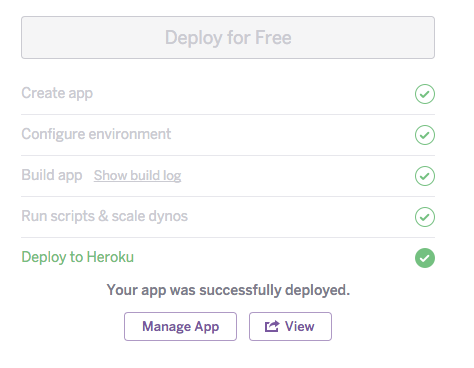
- Heroku one-click deploy
- Multi-user support
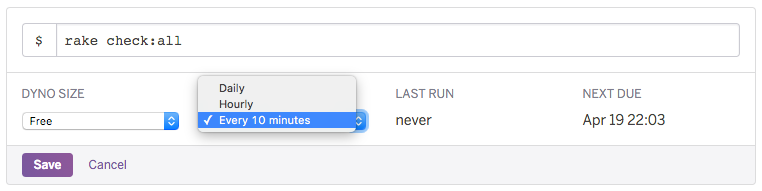
- Scheduled checks
- Slack notifications
- Web Dashboard
- Website change monitoring
Klaxon README


More in News Aggregators
 LibredditSelf-hosted, open-source private front-end for Reddit written in Rust that proxied all traffic server-side; it stopped working in 2023 and lives on as the Redlib fork.
 liuliSelf-hosted, open-source reading pipeline that collects WeChat accounts, novels and blogs, then pushes cleaned articles to DingTalk, WeCom, Telegram, Bark or RSS.
 lobsters-rails-projectOpen-source, self-hosted Rails app for running your own link-aggregation and discussion community, with tags, invitations, and public moderation logs.
 MinifluxSelf-hosted, open-source RSS/Atom feed reader in Go: one static binary plus PostgreSQL, full-text search, OPML import, and privacy-focused link cleaning.
 Nextcloud News📰 RSS/Atom feed reader
 ReadflowSelf-hosted open-source news reader with offline reading, PWA support, and webhook integrations for Pocket, Wallabag, and RSS feeds.
 RSS-BridgeSelf-hosted, open-source PHP app that generates RSS, Atom and JSON feeds for websites missing them, with 447 community bridges and file, SQLite or Memcached caching.
 RSS GuardSelf-hosted open-source Qt desktop feed reader for RSS, Atom and JSON feeds that syncs with FreshRSS, Miniflux, Tiny Tiny RSS and Nextcloud News, and plays podcasts.
 selfossOpen-source, self-hosted PHP web app that pulls feeds, tweets and posts into one stream, with OPML import, regex filters, a spout plugin system and a REST JSON API.
 spotwebSelf-hosted Usenet community implementing the Spotnet protocol. Browse, filter, and download spots with Sabnzbd/NZBGet integration and Newznab API for automation tools.
 SuperdeskSuperdesk is a self-hosted, open-source digital newsroom platform for news organizations, combining headless CMS with editorial workflows and multi-channel publishing.
 voyagerVoyager is an open-source, self-hosted mobile-first web client for Lemmy and Piefed, with swipe gestures, multi-account support and native iOS/Android apps.
0 comments