
Self-host Livebook
nightlyInteractive Elixir notebooks for code and data automation
docker run -p 8080:8080 -p 8081:8081 --pull always ghcr.io/livebook-dev/livebook- Stars
- 5 919
- Ports
- 8080 (the Livebook web application), 8081 (iframe content served when Livebook runs without TLS)
ghcr.io/livebook-dev/livebook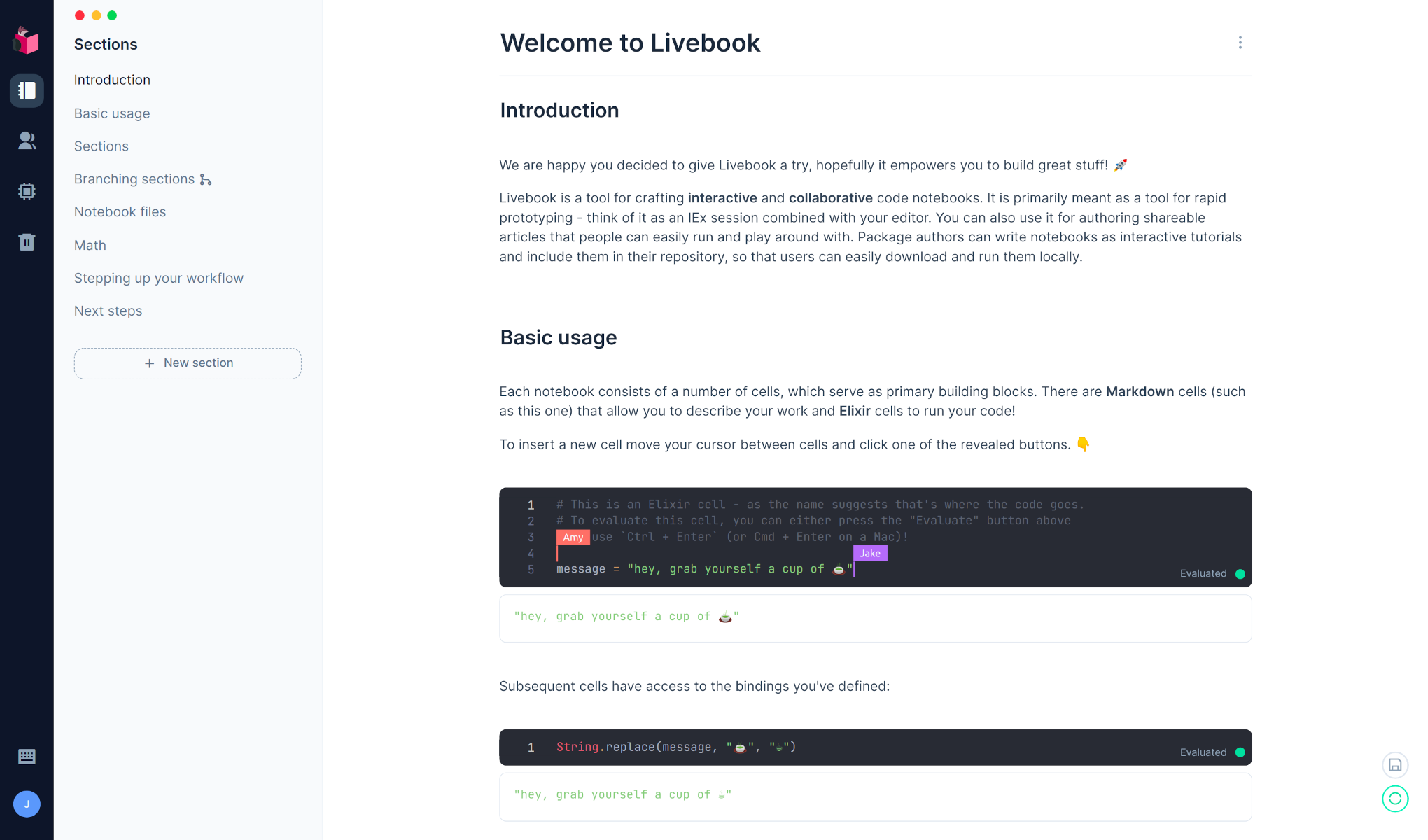
What is Livebook?
An open-source notebook environment for Elixir, delivered as a web application you run yourself, aimed at turning code and data workflows into documented, reproducible notebooks. Each notebook mixes Markdown prose with cells evaluated on demand: editing goes through a CodeMirror-based editor with autocompletion, inline docs and formatting, while results can be Vega-Lite charts, tables or maps. Smart cells cover high-level tasks such as connecting to databases, plotting and running machine-learning models, and evaluation can happen in a fresh standalone Elixir instance, an attached node, or inside an existing project so its modules and dependencies are available. Documents persist as .livemd text files, a Markdown subset that supports Mermaid diagrams and KaTeX formulas, so they diff and version-control cleanly; the "Run in Livebook" badge lets any notebook be imported into your own instance. Installation options include desktop builds for macOS, Windows and Linux, the published Docker image (with CUDA and nightly variants), an escript installed via Mix, running from source, or Nerves firmware for boards like the Raspberry Pi. Instances can be clustered, notebooks can be published as password-protected web applications, access is guarded by a startup token or an optional password, and the server binds to 127.0.0.1 by default. Many environment variables cover ports, reverse-proxy paths, logging and identity providers. Versioning is still pre-1.0 (v0.19.x) but releases ship often.
Livebook alternatives
 liveblogSelf-hosted open-source live blogging platform for newsrooms covering breaking news with real-time multimedia. CMS embed, REST API, mobile reporter apps.Compareliveblog with Livebook
 mermaid-live-editorSelf-hosted, open-source web editor for Mermaid diagrams with live preview, SVG and PNG export, and shareable view or edit links.Comparemermaid-live-editor with Livebook
 SrcbookSrcbook is a self-hosted TypeScript notebook running locally with a web UI, AI coding help, and Mermaid diagrams — for developers exploring libraries or testing APIs.CompareSrcbook with Livebook
 dockgeA self-hosted, open-source web UI for Docker Compose stacks: create, edit and deploy compose.yaml files, with a live web terminal and multi-host agents.Comparedockge with Livebook
 GitWitGitWit is a self-hosted, open-source AI coding platform with a browser-based IDE, live preview, AI chat, and support for Anthropic, OpenAI, and AWS Bedrock.CompareGitWit with Livebook
 CodinIT.devSelf-hosted open-source AI full-stack dev platform for building Node.js apps with code generation and 19+ AI providers.CompareCodinIT.dev with Livebook
 marimomarimo is an open-source, self-hosted reactive Python notebook replacing Jupyter and Streamlit. Stores notebooks as pure Python files with SQL, interactive UI, AI.Comparemarimo with Livebook
 react-glass-keepSelf-hosted notes app similar to Google Keep with dark mode, real-time collaboration, private AI assistant, and native apps for Windows, macOS, Android.Comparereact-glass-keep with Livebook
Should you self-host Livebook?
Livebook scores 70/100 on selfhost.directory (how scoring works) and ranks #2 of 3 in Data Science. It has 5 919 GitHub stars, +41 in the last 30 days.
It shipped 12 stable releases in the past year. The latest, v0.19.10, came out on 17 September 2026. New versions land roughly every 6 days.
Setup is easy: most people get it running in one sitting. An official Docker image is available. It is Apache-2.0-licensed and written mostly in Elixir.
Its closest alternative on selfhost.directory is JupyterLab (78/100, 15 401 stars). It scores higher overall, so compare the two before you pick. See Livebook vs JupyterLab side by side.
Features
- Clustered instances
- Custom Runtimes
- Deploy notebooks as web apps
- Interactive code notebooks
- Markdown notebook format (.livemd)
- Python Support
- Real-Time Collaboration
- Reproducible evaluation and package management
- Rich Code Editor
- Rich output (charts, tables, maps)
- Shared notebook badges
- Smart cells
Livebook README
Livebook is a web application for writing interactive and collaborative code notebooks. It features:
-
Code notebooks with Markdown support and Code cells where Elixir code is evaluated on demand.
-
Rich code editor through CodeMirror: with support for autocompletion, inline documentation, code formatting, etc.
-
Interactive results via Kino: display Vega-Lite charts, tables, maps, and more.
-
Automation: use Smart cells to perform high-level tasks and write notebooks faster than ever. Query databases, plot charts, build maps, and more directly from Livebook's UI.
-
Reproducible: Livebook ensures your code runs in a predictable order, all the way down to package management. It also tracks your notebook state, annotating which parts are stale.
-
Collaboration: multiple users can work on the same notebook at once, no additional setup required.
-
Decentralized: Livebook is open-source and you can run it anywhere. The "Run in Livebook" badge makes it easy to import any Livebook into your own Livebook.
-
Versionable: notebooks are stored in the
.livemdformat, which is a subset of Markdown with support for diagrams via Mermaid and for mathematical formulas via KaTex..livemdfiles can be shared and play well with version control. -
Custom runtimes: when executing Elixir code, you can either start a fresh Elixir instance, connect to an existing node, or run it inside an existing Elixir project, with access to all of its modules and dependencies. This means Livebook can be a great tool to introspect and document existing projects too.
Head out to the Install section of Livebook's website to get started. Once Livebook is up and running on your machine, visit the "Learn" section with introductory guides and documentation on several Livebook features. Here is a sneak peak of the "Welcome to Livebook" guide:

There are more resources for those who are ready to dig deeper:
-
Our official documentation with in-depth guides
-
Our Integrations page covering the languages, data sources, and libraries that Livebook works with out-of-the-box
-
Our blog with news, posts, and screencasts
We provide several methods for running Livebook, pick the one that best fits your use case.
-
Download the installer for Mac and Windows from our homepage
-
Latest stable builds: macOS (arm64), macOS (x64), Windows, Linux (arm64), Linux (x64)
-
Nightly builds: macOS (arm64), macOS (x64), Windows, Linux (arm64), Linux (x64)
-
Builds for particular Livebook version are available on our GitHub releases.
Running Livebook using Docker is another great option to run Livebook in case you don't have Elixir installed.
# Running with the default configuration
docker run -p 8080:8080 -p 8081:8081 --pull always ghcr.io/livebook-dev/livebook

# In order to access and save notebooks directly to your machine
# you can mount a local directory into the container.
# Make sure to specify the user with "-u $(id -u):$(id -g)"
# so that the created files have proper permissions
docker run -p 8080:8080 -p 8081:8081 --pull always -u $(id -u):$(id -g) -v $(pwd):/data ghcr.io/livebook-dev/livebook

# You can configure Livebook using environment variables,
# for all options see the dedicated "Environment variables" section below
docker run -p 8080:8080 -p 8081:8081 --pull always -e LIVEBOOK_PASSWORD="securesecret" ghcr.io/livebook-dev/livebook

# Or if you need to run on different ports:
docker run -p 8090:8090 -p 8091:8091 --pull always -e LIVEBOOK_PORT=8090 -e LIVEBOOK_IFRAME_PORT=8091 ghcr.io/livebook-dev/livebook
To deploy Livebook on your cloud platform, see our Docker Deployment guide.
For CUDA support, see images with the "cuda" tag.
To try out features from the main branch you can alternatively
use the ghcr.io/livebook-dev/livebook:nightly image.
See Livebook images.
If you want to run Livebook on embedded devices, such as Raspberry Pi, BeagleBone, etc., check out the Livebook firmware built with Nerves.
You can run Livebook on your own machine using just Elixir. You will need
Elixir v1.18 or later.
Livebook also requires the following Erlang applications: inets,
os_mon, runtime_tools, ssl and xmerl. Those applications come
with most Erlang distributions but certain package managers may split
them apart. For example, on Ubuntu, these Erlang applications can
be installed as follows:
sudo apt install erlang-inets erlang-os-mon erlang-runtime-tools erlang-ssl erlang-xmerl erlang-dev erlang-parsetools
Note: The livebook package
is meant to be used as a CLI tool. Livebook is not officially
supported as a Mix/Hex dependency.
Running Livebook using Escript makes for a very convenient option for local usage and provides easy configuration via CLI options.
mix do local.rebar --force, local.hex --force
mix escript.install hex livebook

# Start the Livebook server
livebook server

# See all the configuration options
livebook server --help
After you install the escript, make sure you add the directory where
Elixir keeps escripts to your $PATH.
If you installed Elixir with asdf, you'll need to run asdf reshim elixir
once the escript is built.
To try out features from the main branch you can alternatively install the escript directly from GitHub like this:
mix escript.install github livebook-dev/livebook
You can run latest Livebook directly from source.
git clone https://github.com/livebook-dev/livebook.git
cd livebook
mix setup.prod

# Run the Livebook server
MIX_ENV=prod mix phx.server
Livebook is built to document and execute code. Anyone with access to a Livebook instance will be able to access any file and execute any code in the machine Livebook is running.
For this reason, Livebook only binds to the 127.0.0.1, allowing access to happen only within the current machine. When running Livebook in the production environment - the recommended environment - we also generate a token on initialization and we only allow access to the Livebook if said token is supplied as part of the URL.
The following environment variables can be used to configure Livebook on boot:
-
LIVEBOOK_ALLOW_URI_SCHEMES- sets additional allowed hyperlink schemes to the Markdown content. Livebook sanitizes links in Markdown, allowing only a few standard schemes by default (such as http and https). Set it to a comma-separated list of schemes. -
LIVEBOOK_APP_SERVICE_NAME- sets the application name used by the cloud provider to aid debugging. -
LIVEBOOK_APP_SERVICE_URL- sets the application url to manage this Livebook instance within the cloud provider platform. -
LIVEBOOK_APPS_BANNER- sets the value to render at the top apps banner. -
LIVEBOOK_APPS_PATH- the directory with app notebooks. When set, the apps are deployed on Livebook startup with the persisted settings. Password-protected notebooks will receive a random password, unlessLIVEBOOK_APPS_PATH_PASSWORDis set. When deploying using Livebook's Docker image, consider usingLIVEBOOK_APPS_PATH_WARMUP. -
LIVEBOOK_APPS_PATH_PASSWORD- the password to use for all protected apps deployed fromLIVEBOOK_APPS_PATH. -
LIVEBOOK_APPS_PATH_WARMUP- sets the warmup mode for apps deployed fromLIVEBOOK_APPS_PATH. Must be either "auto" (apps are warmed up on Livebook startup, right before app deployment) or "manual" (apps are warmed up when building the Docker image; to do so add "RUN /app/bin/warmup_apps" to your image). Defaults to "auto". -
LIVEBOOK_AWS_CREDENTIALS- enable Livebook to read AWS Credentials from environment variables, AWS Credentials, EC2/ECS metadata when configuring S3 buckets. -
LIVEBOOK_BASE_URL_PATH- sets the base url path the web application is served on. Useful when deploying behind a reverse proxy. -
LIVEBOOK_PUBLIC_BASE_URL_PATH- sets the base url path the/public/*routes are served on. Note that this takes precedence overLIVEBOOK_BASE_URL_PATH, if both are set. Setting this may be useful to create exceptions when deploying behind a reverse proxy that requires authentication. -
LIVEBOOK_CACERTFILE- path to a local file containing CA certificates. Those certificates are used during for server authentication when Livebook accesses files from external sources. -
LIVEBOOK_CLUSTER- configures clustering strategy when running multiple instances of Livebook using either the Docker image or an Elixir release. See the "Clustering" docs for more information: https://hexdocs.pm/livebook/clustering.html -
LIVEBOOK_COOKIE- sets the cookie for running Livebook in a cluster. Defaults to a random string that is generated on boot. -
LIVEBOOK_DATA_PATH- the directory to store Livebook's internal configuration. Defaults to "livebook" under the default user data directory. -
LIVEBOOK_DEFAULT_RUNTIME- sets the runtime type that is used by default when none is started explicitly for the given notebook. Must be either "standalone" (Standalone), "attached:NODE:COOKIE" (Attached node) or "embedded" (Embedded). Defaults to "standalone". -
LIVEBOOK_FORCE_SSL_HOST- sets a host to redirect to if the request is not over HTTPS. Note it does not apply when accessing Livebook via localhost. Defaults to nil. -
LIVEBOOK_HOME- sets the home path for the Livebook instance. This is the default path used on file selection screens and others. Defaults to the user's operating system home. -
LIVEBOOK_IDENTITY_PROVIDER- controls whether Zero Trust Authentication must be used for this Livebook instance. This is useful when deploying Livebook inside a cloud platform, such as Cloudflare and Google. Supported values are:basic_auth:<username>:<password>cloudflare:<your-team-name (domain)>google_iap:<your-audience (aud)>tailscale:<tailscale-cli-socket-path>custom:YourElixirModule
See our authentication docs for more information: https://hexdocs.pm/livebook/authentication.html
-
LIVEBOOK_IFRAME_PORT- sets the port that Livebook serves iframes at. This is relevant only when running Livebook without TLS. Defaults to 8081. -
LIVEBOOK_IFRAME_URL- sets the URL that Livebook loads iframes from. By default iframes are loaded from localLIVEBOOK_IFRAME_PORTwhen accessing Livebook over http:// and from https://livebookusercontent.com when accessing over https://. -
LIVEBOOK_IMAGE_REGISTRY_URL- sets the container image registry used to fetch livebook images from. By default usesghcr.io/livebook-dev/livebook. -
LIVEBOOK_IP- sets the ip address to start the web application on. Must be a valid IPv4 or IPv6 address. -
LIVEBOOK_LOG_LEVEL- sets the logger level, allowing for more verbose logging, either of: error, warning, notice, info, debug. Defaults to warning. -
LIVEBOOK_LOG_METADATA- a comma-separated list of metadata keys that should be included in the log messages. Livebook-specific keys include:users(attached to evaluation and request logs)session_mode(attached to evaluation logs, either "default" or "app")code(attached to evaluation logs, the code being evaluated)event(attached to evaluation logs, currently always "code.evaluate")
By default includes only
request_id. -
LIVEBOOK_LOG_FORMAT- sets the log output format, either "text" (default) for human-readable logs or "json" for structured JSON. -
LIVEBOOK_NODE- sets the node name for running Livebook in a cluster. Note that Livebook always runs using long names distribution, so the node host name must use a fully qualified domain name (FQDN) or an IP address. -
LIVEBOOK_PASSWORD- sets a password that must be used to access Livebook. Must be at least 12 characters. Defaults to token authentication. -
LIVEBOOK_PROXY_HEADERS- a comma-separated list of headers that are set by proxies. For example,x-forwarded-for,x-forwarded-proto. Configuring those may be required when running Livebook behind reverse proxies. -
LIVEBOOK_PORT- sets the port Livebook runs on. If you want to run multiple instances on the same domain with the same credentials but on different ports, you also need to setLIVEBOOK_SECRET_KEY_BASE. Defaults to 8080. If set to 0, a random port will be picked. -
LIVEBOOK_SECRET_KEY_BASE- sets a secret key that is used to sign and encrypt the session and other payloads used by Livebook. Must be at least 64 characters long and it can be generated by commands such as:openssl rand -base64 48. Defaults to a random secret on every boot. -
LIVEBOOK_SHUTDOWN_ENABLED- controls if a shutdown button should be shown in the homepage. Set it to "true" to enable it. -
LIVEBOOK_TOKEN_ENABLED- controls whether token authentication is enabled. Enabled by default unlessLIVEBOOK_PASSWORDis set. Set it to "false" to disable it. -
LIVEBOOK_UPDATE_INSTRUCTIONS_URL- sets the URL to direct the user to for updating Livebook when a new version becomes available. -
LIVEBOOK_WITHIN_IFRAME- controls if the application is running inside an iframe. Set it to "true" to enable it. If you do enable it, then the application must run with HTTPS.
The environment variables ERL_AFLAGS and ERL_ZFLAGS can also be set to configure
Livebook and the notebook runtimes. ELIXIR_ERL_OPTIONS are also available to customize
Livebook, but it is not forwarded to runtimes.
If running Livebook via the command line, run livebook server --help to see
all CLI-specific options.
When running Livebook Desktop, Livebook will invoke on boot a file named
~/.livebookdesktop.sh on macOS or %USERPROFILE%\.livebookdesktop.bat
on Windows. This file can set environment variables used by Livebook,
such as:
-
or to configure the Erlang VM, for instance, by setting
ERL_AFLAGS="-proto_dist inet6_tcp"if you need Livebook to run over IPv6
Be careful when modifying boot files, Livebook may be unable to start if configured incorrectly.
Livebook is primarily a Phoenix web application and can be setup as such:
git clone https://github.com/livebook-dev/livebook.git
cd livebook
mix setup

# Run the Livebook server
mix phx.server

# Run tests
mix test
./rel/app/tauri.sh dev
More in Data Science
- marimomarimo is an open-source, self-hosted reactive Python notebook replacing Jupyter and Streamlit. Stores notebooks as pure Python files with SQL, interactive UI, AI.
 RStudio ServerThe open-source RStudio IDE for R data scientists runs as a desktop app or as self-hosted RStudio Server on your own Linux server, accessed from a browser.
 Shiny ServerSelf-hosted server to run Shiny R web applications with multi-app hosting, user deployment, and authentication options.
 sparklabxSelf-hosted Apache Spark notebook platform with per-user PySpark/Scala kernels, MinIO IAM storage isolation, OAuth, and Helm deployment. Open-source core, Apache-2.0.
 Tesseract CoreTesseract Core is an open-source, self-hosted framework that packages scientific software into portable, containerized components with CLI, REST, and Python interfaces.
 Transformer LabSelf-hosted, open-source ML platform to train, fine-tune, evaluate and serve LLMs, diffusion and audio models locally or across GPU clusters.
 JupyterLabSelf-hosted, open-source web workspace for Project Jupyter: notebooks, terminals, text editors, debugger, workspaces and a large extension ecosystem.
 Jupyter NotebookInteractive web-based environment for creating notebooks with live code, visualizations, and documentation. Open-source alternative to commercial notebook platforms.
0 comments