
Self-host BentoPDF
v2.8.11Privacy-first PDF toolkit that runs fully in your browser
docker run -p 3000:8080 ghcr.io/alam00000/bentopdf-simple:latest- Stars
- 16 315
- Port
- 8080 (nginx-unprivileged HTTP server inside the container (configurable via the PORT env var))
ghcr.io/alam00000/bentopdf-simple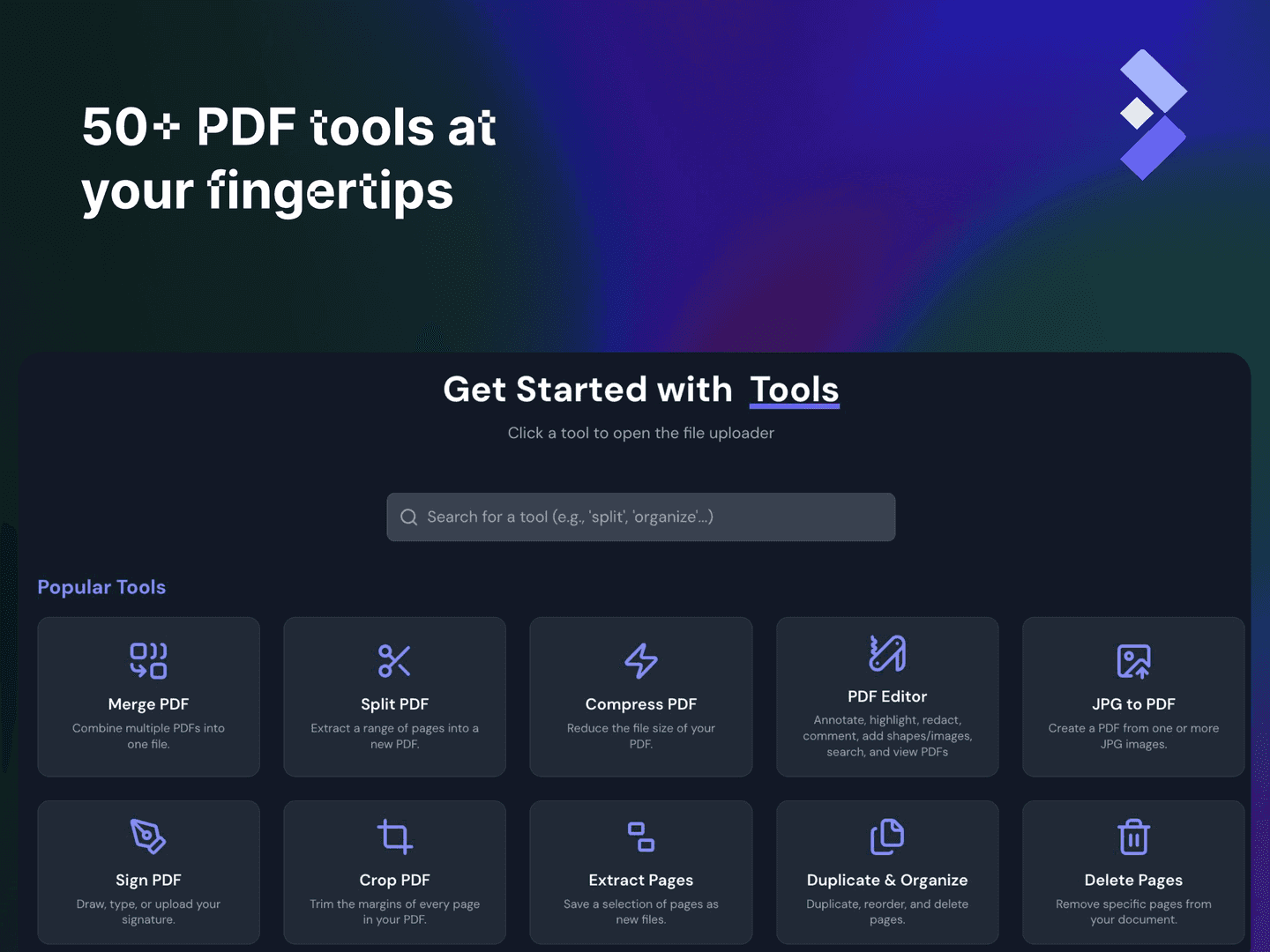
What is BentoPDF?
BentoPDF is a browser-based PDF suite where every operation runs client-side, so documents stay on your machine and no server ever sees them. It ships over 100 tools: merging, splitting and reorganizing pages, annotating and editing text directly in a PDF, creating and filling forms, OCR for scanned documents, digital signatures with X.509 certificates, compression, password protection, conversion to and from images, Office files and ebooks, plus a visual workflow builder for chaining PDF pipelines. Self-hosting is simple because the app is fully static: run the ghcr.io/alam00000/bentopdf-simple image (Docker, Podman, Compose or a Quadlet systemd unit), download the release zip and serve it from any web host, or deploy it to Netlify, Vercel or GitHub Pages; a prepare-airgap.sh script bundles everything for offline networks. The code is AGPL-3.0, while proprietary or closed-source deployments require a one-time $79 commercial license. Heavy processing engines (PyMuPDF, Ghostscript, CoherentPDF) are fetched from a CDN by default and can be pointed at your own server through build-time variables. There is no user login; the tool pages are anonymous by design.
BentoPDF alternatives
 Signature PDFWeb app for digital PDF signatures, organizing (merge, rotate), metadata editing, and compression. PHP Fat-Free with Bootstrap.CompareSignature PDF with BentoPDF
 BentoSelf-hosted, open-source PowerPoint alternative: each deck is a single HTML file containing its own viewer, editor, and E2EE live collaboration, working offline.CompareBento with BentoPDF
 GotenbergSelf-hosted open-source Docker API that converts URLs, HTML, Markdown, and 100+ office formats into PDFs, and merges, splits, encrypts or watermarks them.CompareGotenberg with BentoPDF
 DocusealOpen-source, self-hosted DocuSign alternative for creating fillable PDF forms and collecting digital signatures via a mobile-friendly web tool.CompareDocuseal with BentoPDF
 SnapOtterOpen-source, self-hosted file-processing suite with 200+ image, video, audio, PDF and document tools, local AI, a REST API and pipelines.CompareSnapOtter with BentoPDF
 OmniToolsA self-hosted, open-source browser toolbox of image, PDF, video, audio, text, list and data tools where every file is processed on your own device.CompareOmniTools with BentoPDF
 Stirling-PDFStirling PDF is a self-hosted, open-source PDF editor with 60+ tools for editing, signing, redacting, converting, and automating PDFs. Runs via Docker or JAR.CompareStirling-PDF with BentoPDF
 Pen2PDFSelf-hosted productivity suite with AI document extraction, timetable, todos, notes, whiteboard, and multi-model AI assistant. Runs on Node.js with MongoDB.ComparePen2PDF with BentoPDF
Should you self-host BentoPDF?
BentoPDF scores 77/100 on selfhost.directory (how scoring works) and ranks #2 of 12 in Document Processing. It has 16 315 GitHub stars, +473 in the last 30 days.
It shipped 16 stable releases in the past year. The latest, v2.8.11, came out on 31 October 2026. New versions land roughly every 8 days.
Setup is easy: most people get it running in one sitting. An official Docker image is available. It is AGPL-3.0-licensed and written mostly in JavaScript.
Its closest alternative on selfhost.directory is Resume-Matcher (81/100, 29 202 stars). It scores higher overall, so compare the two before you pick. See BentoPDF vs Resume-Matcher side by side.
Features
- Client-side processing
- Custom Branding
- Digital Signatures
- Encryption / decryption
- Fillable forms
- Format Conversion
- Merge PDFs
- OCROCR assets can be self-hosted via VITE_TESSERACT_* variables for offline use.
- Offline / air-gapped deployment
- Page organization
- PDF annotation editor
- PDF Compression
- PDF text editing
- Split PDFs
- Visual Workflow Builder
BentoPDF README

Organizational Supporters


Individual Supporters




BentoPDF is a powerful, privacy-first, client-side PDF toolkit that is self-hostable and allows you to manipulate, edit, merge, and process PDF files directly in your browser. No server-side processing is required, ensuring your files remain secure and private.

- Join Us on Discord
- Documentation
- Licensing
- Stargazers over time
- Why BentoPDF?
- Features / Tools Supported
- Other Products
- Translations
- Getting Started
- Prerequisites
- Quick Start
- Static Hosting
- Self-Hosting Locally
- Docker Compose / Podman Compose
- Podman Quadlet
- Self-Hosted Build (Simple Mode)
- Commercial Build
- Custom Branding
- Disabling Specific Tools
- Disabling the GitHub Star Counter
- WASM Configuration
- Air-Gapped / Offline Deployment
- Security Features
- Digital Signature CORS Proxy
- Version Management
- Development Setup
- Tech Stack & Background
- Roadmap
- Contributing
- Special Thanks
Have questions, feature requests, or want to chat with the community? Join our Discord server!
Visit our Documentation for:
- Getting Started guide
- Tools Reference (50+ tools)
- Self-Hosting guides (Docker, Vercel, Netlify, Cloudflare, AWS, Hostinger, Nginx, Apache)
- Contributing guide
- Commercial License details
BentoPDF is dual-licensed to fit your needs:
| License | Best For | Price |
|---|---|---|
| AGPL-3.0 | Open-source projects with public source code | Free |
| Commercial | Proprietary / closed-source applications | $79 (lifetime) |
One-time purchase · One product, unlimited devices & users · Lifetime updates · No AGPL obligations
Building on BentoPDF? Hyper Compress is included. The commercial license covers Hyper Compress as a bundled component in eligible products: companies under US$1 million in revenue and funding, general PDF toolkits, and only through BentoPDF's own tools on the end user's device. Using the engine on its own, on a server, through an API or in other software needs a separate Hyper Compress license, and Kura is licensed separately. Both are annual subscriptions from $99/year, under the Hyper Compress and Kura commercial licenses. See the full license terms.
📖 For more details, see our Licensing Page
BentoPDF does not bundle AGPL-licensed processing libraries in its source code, but pre-configures CDN URLs so all features work out of the box with zero setup:
| Component | License | Features Enabled |
|---|---|---|
| PyMuPDF | AGPL-3.0 | PDF to Text/Markdown/SVG/DOCX, Extract Images/Tables, EPUB/MOBI/XPS conversion, Compression, Deskew |
| Ghostscript | AGPL-3.0 | PDF/A Conversion, Font to Outline |
| CoherentPDF (CPDF) | AGPL-3.0 | Merge, Split by Bookmarks, Table of Contents, PDF to/from JSON, Attachments |
Tip
Zero-config by default. WASM modules are loaded at runtime from jsDelivr CDN. No manual configuration is needed. For custom deployments (air-gapped, self-hosted), see WASM Configuration below.
- Privacy First: All processing happens in your browser. Your files are never uploaded to a server, guaranteeing 100% privacy.
- No Limits: Manipulate as many files as you want, as often as you want. There are no restrictions or upload limits.
- High Performance: Built with modern web technologies, BentoPDF is fast and efficient, handling even large PDF files with ease.
- Completely Free: BentoPDF is a free and open-source tool for everyone.
BentoPDF offers a comprehensive suite of tools to handle all your PDF needs.
| Tool Name | Description |
|---|---|
| Merge PDFs | Combine multiple PDF files into one. Preserves Bookmarks. |
| Split PDFs | Extract specific pages or divide a document into smaller files. |
| Organize Pages | Reorder, duplicate, or delete pages with a simple drag-and-drop interface. |
| Extract Pages | Save a specific range of pages as a new PDF. |
| Delete Pages | Remove unwanted pages from your document. |
| Rotate PDF | Rotate individual or all pages in a document. |
| Rotate by Custom Degrees | Rotate pages by any custom angle. |
| N-Up PDF | Combine multiple pages onto a single page. |
| View PDF | A powerful, integrated PDF viewer. |
| Alternate & Mix Pages | Merge pages by alternating pages from each PDF. Preserves Bookmarks. |
| Posterize PDF | Split a PDF into multiple smaller pages for print. |
| PDF Multi Tool | Merge, Split, Organize, Delete, Rotate, Add Blank Pages, Extract and Duplicate in a unified interface. |
| PDF Booklet | Rearrange pages for double-sided booklet printing. Fold and staple to create a booklet. |
| Add Attachments | Embed one or more files into your PDF. |
| Extract Attachments | Extract all embedded files from PDF(s) as a ZIP. |
| Edit Attachments | View or remove attachments in your PDF. |
| Divide Pages | Divide pages horizontally or vertically. |
| Combine to Single Page | Stitch all pages into one continuous scroll. |
| Add Blank Page | Insert an empty page anywhere in your PDF. |
| Reverse Pages | Flip the order of all pages in your document. |
| View Metadata | Inspect the hidden properties of your PDF. |
| PDFs to ZIP | Package multiple PDF files into a ZIP archive. |
| Compare PDFs | Compare two PDFs side by side. |
| Tool Name | Description |
|---|---|
| PDF Editor | Annotate, highlight, redact, comment, add shapes/images, search, and view PDFs. |
| Edit PDF Text | Edit existing text directly in your PDF. Reuses the document's embedded fonts and keeps the rest of the page untouched. |
| Create Fillable Forms | Create professional fillable PDF forms with text fields, checkboxes, dropdowns, radio buttons, signatures, and more. Fully compliant with PDF standards for compatibility with all PDF viewers. |
| PDF Form Filler | Fill in forms directly in the browser. Also supports XFA forms. |
| Add Page Numbers | Easily add page numbers with customizable formatting. |
| Bates Numbering | Add sequential Bates numbers across one or more PDF files. |
| Add Watermark | Add text or image watermarks to protect your documents. |
| Header & Footer | Add customizable headers and footers. |
| Crop PDF | Crop specific pages or the entire document. |
| Deskew PDF | Automatically straighten tilted scanned pages using OpenCV. |
| Font to Outline | Convert all fonts to vector outlines for consistent rendering across all devices. |
| Invert Colors | Invert the colors of your PDF pages for better readability. |
| Change Background | Modify the background color of your PDF. |
| Change Text Color | Change the color of text content within the PDF. |
| Flatten PDF | Flatten form fields and annotations into static content. |
| Remove Annotations | Remove comments, highlights, and other annotations. |
| Remove Blank Pages | Auto detect and remove blank pages in a PDF. |
| Edit Bookmarks | Add, Edit, Create, Import and Export PDF Bookmarks. |
| Add Stamps | Add image stamps to your PDF using the annotation toolbar. |
| Table of Contents | Generate a table of contents page from PDF bookmarks. |
| Redact Content | Permanently remove sensitive content from your PDFs. |
| Scanner Effect | Make your PDF look like a scanned document. |
| Adjust Colors | Fine-tune brightness, contrast, saturation and more. |
| Tool Name | Description |
|---|---|
| PDF Workflow Builder | Build custom PDF processing pipelines with a visual node editor. |
| Tool Name | Description |
|---|---|
| Image to PDF | Convert JPG, PNG, BMP, GIF, TIFF, PNM, PGM, PBM, PPM, PAM, JXR, JPX, JP2, PSD, SVG, HEIC, WebP to PDF. |
| JPG to PDF | Convert JPG, JPEG, and JPEG2000 (JP2/JPX) images to PDF. |
| PNG to PDF | Convert PNG images to PDF. |
| WebP to PDF | Convert WebP images to PDF. |
| SVG to PDF | Convert SVG images to PDF. |
| BMP to PDF | Convert BMP images to PDF. |
| HEIC to PDF | Convert HEIC images to PDF. |
| TIFF to PDF | Convert TIFF images to PDF. |
| PSD to PDF | Convert Adobe Photoshop (PSD) files to PDF. |
| Word to PDF | Convert Word documents (DOCX, DOC, ODT, RTF) to PDF. |
| Excel to PDF | Convert Excel spreadsheets (XLSX, XLS, ODS, CSV) to PDF. |
| PowerPoint to PDF | Convert PowerPoint presentations (PPTX, PPT, ODP) to PDF. |
| ODT to PDF | Convert OpenDocument Text files to PDF. |
| ODS to PDF | Convert OpenDocument Spreadsheet (ODS) files to PDF. |
| ODP to PDF | Convert OpenDocument Presentation (ODP) files to PDF. |
| ODG to PDF | Convert OpenDocument Graphics (ODG) files to PDF. |
| RTF to PDF | Convert Rich Text Format documents to PDF. |
| CSV to PDF | Convert CSV spreadsheet files to PDF. |
| Markdown to PDF | Write or paste Markdown and export it as a beautifully formatted PDF. |
| Text to PDF | Convert plain text files into a PDF. |
| JSON to PDF | Convert JSON files to PDF. |
| XML to PDF | Convert XML documents to PDF. |
| EPUB to PDF | Convert EPUB e-books to PDF. |
| MOBI to PDF | Convert MOBI e-books to PDF. |
| FB2 to PDF | Convert FictionBook (FB2) e-books to PDF. |
| CBZ to PDF | Convert comic book archives (CBZ/CBR) to PDF. |
| XPS to PDF | Convert XPS/OXPS documents to PDF. |
| Email to PDF | Convert email files (EML, MSG) to PDF. Supports Outlook exports. |
| Pages to PDF | Convert Apple Pages documents to PDF. |
| WPD to PDF | Convert WordPerfect documents (WPD) to PDF. |
| WPS to PDF | Convert WPS Office documents to PDF. |
| PUB to PDF | Convert Microsoft Publisher (PUB) files to PDF. |
| VSD to PDF | Convert Microsoft Visio (VSD, VSDX) files to PDF. |
| Tool Name | Description |
|---|---|
| PDF to Image | Convert PDF pages to JPG, PNG, WebP, BMP, or TIFF formats. |
| PDF to JPG | Convert each PDF page into a JPG image. |
| PDF to PNG | Convert each PDF page into a PNG image. |
| PDF to WebP | Convert each PDF page into a WebP image. |
| PDF to BMP | Convert each PDF page into a BMP image. |
| PDF to TIFF | Convert each PDF page into a TIFF image. |
| PDF to CBZ | Convert a PDF into a CBZ (Comic Book Archive) for comic readers and Calibre. |
| PDF to SVG | Convert each page into a scalable vector graphic (SVG) for perfect quality. |
| PDF to Greyscale | Convert a color PDF into a black-and-white version. |
| PDF to Text | Extract text from PDF files and save as plain text (.txt). |
| PDF to JSON | Convert PDF files to JSON format. |
| PDF to CSV | Extract tables from PDF and convert to CSV format. |
| PDF to Excel | Extract tables from PDF and convert to Excel (XLSX) format. |
| Extract Tables | Extract tables from PDF files and export as CSV, JSON, or Markdown. |
| OCR PDF | Make scanned PDFs searchable and copyable using Optical Character Recognition. |
| Tool Name | Description |
|---|---|
| Compress PDF | Reduce file size while maintaining quality. |
| Repair PDF | Attempt to repair and recover data from a corrupted PDF. |
| Encrypt PDF | Add a password to protect your PDF from unauthorized access. |
| Decrypt PDF | Remove password protection from a PDF (password required). |
| Change Permissions | Set or modify user permissions for printing, copying, and editing. |
| Sign PDF | Draw, type, or upload your signature. |
| Digital Signature | Add cryptographic digital signatures using X.509 certificates (PFX/PEM). Private key never leaves browser. |
| Validate Signature | Verify digital signatures, check certificate validity, and confirm document integrity. |
| Redact Content | Permanently remove sensitive content from your PDFs. |
| Edit Metadata | View and modify PDF metadata (author, title, keywords, etc.). |
| Remove Metadata | Strip all metadata from your PDF for privacy. |
| Linearize PDF | Optimize PDF for fast web viewing. |
| Sanitize PDF | Remove metadata, annotations, scripts, and more. |
| Fix Page Size | Standardize all pages to a uniform size. |
| Page Dimensions | Analyze page size, orientation, and units. |
| Remove Restrictions | Remove password protection and security restrictions associated with digitally signed PDF files. |
BentoPDF is available in multiple languages:
| Language | Status |
|---|---|
| English | |
| Chinese | |
| Traditional Chinese | |
| French | |
| German | |
| Indonesian | |
| Italian | |
| Portuguese | |
| Turkish | |
| Vietnamese | |
| Korean | |
| Russian | |
| Persian (Farsi) |
Want to help translate BentoPDF into your language? Check out our Translation Guide!
You can run BentoPDF locally for development or personal use.
- Node.js (v18 or higher recommended)
- npm (or yarn/pnpm)
- Docker & Docker Compose (for containerized setup)
Run BentoPDF instantly from GitHub Container Registry (Recommended):
docker run -p 3000:8080 ghcr.io/alam00000/bentopdf-simple:latest
Open your browser at: http://localhost:3000
Tip
BentoPDF ships in two builds:
- Self-Hosted build —
ghcr.io/alam00000/bentopdf-simple:latest. Every PDF tool the public site has, without the BentoPDF marketing (no hero, FAQ, testimonials, footer). Use this for internal/team/organization deployments. It is not a feature-reduced lite version. - Commercial build —
ghcr.io/alam00000/bentopdf:latest. The full marketing site, used by bentopdf.com itself and by commercial license holders running public-facing deployments. Includes hero, FAQ, testimonials, and footer.
If in doubt: pull the Self-Hosted build.
Alternative: Using Docker Hub or Podman
Docker Hub:
docker run -p 3000:8080 bentopdfteam/bentopdf-simple:latest
Podman (GHCR):
podman run -p 3000:8080 ghcr.io/alam00000/bentopdf-simple:latest
Podman (Docker Hub):
podman run -p 3000:8080 docker.io/bentopdfteam/bentopdf-simple:latest
[!NOTE] All
dockercommands in this documentation work with Podman by replacingdockerwithpodman.
It is very straightforward to host your own instance of BentoPDF using a static web page hosting service. Plus, services such as Netlify, Vercel, and GitHub Pages all offer a free tier for getting started. See Static Hosting for details.
Since BentoPDF is fully client-side, all processing happens in the user's browser and no server-side processing is required. This means you can host BentoPDF as simple static files on any web server or hosting platform.
Important
Office file conversion uses LibreOffice WASM, which requires SharedArrayBuffer. That means the app must be both cross-origin isolated and served from a secure context. http://localhost works for local testing, but http://192.168.x.x or other LAN IPs usually require HTTPS even if the server already sends the correct COOP/COEP headers.
Download from Releases (Recommended):
The easiest way to self-host is to download the pre-built distribution file from our GitHub releases. Each release includes a dist-{version}.zip file that contains all necessary files for self-hosting.
- Go to BentoPDF Releases
- Download the latest
dist-{version}.zipfile - Extract the zip file
- Serve the extracted folder with your preferred web server
Serve the extracted folder (requires Node.js):
# Navigate to the extracted folder
cd dist-1.7.3  # Replace with your version

# Start a local server
npx http-server -c-1
The website will be accessible at: http://localhost:8080/
Note
The -c-1 flag disables caching for development.
Build from Source (Advanced):
If you prefer to build from source:
# Clone the repository
git clone https://github.com/alam00000/bentopdf.git
cd bentopdf

# Install dependencies
npm install

# Build the project
npm run build

# Package the distribution for hosting (optional)
npm run package

# Preview the build locally
npm run preview

# The website will be accessible at: http://localhost:4173/
Compression Modes:
By default the build saves no compressed copies, and your server or host compresses files as it sends them. If your server can send precompressed files (nginx gzip_static or brotli_static, Apache, Caddy precompressed), set COMPRESSION_MODE to save .gz and/or .br copies next to each text and WASM file. The originals are always kept.
The prebuilt Docker images have no copies, and their nginx compresses with gzip on the fly. Build your own image with COMPRESSION_MODE=g to have it serve .gz copies instead. The image's nginx can't serve brotli, so for brotli put a proxy or CDN that compresses with brotli, such as Traefik or Cloudflare, in front of it.
# No copies (default)
npm run build:original
docker build --build-arg COMPRESSION_MODE=o -t bentopdf:original .

# Gzip copies
npm run build:gzip
docker build --build-arg COMPRESSION_MODE=g -t bentopdf:gzip .

# Brotli copies
npm run build:brotli
docker build --build-arg COMPRESSION_MODE=b -t bentopdf:brotli .

# Both
npm run build:all
docker build --build-arg COMPRESSION_MODE=all -t bentopdf:all .
| Mode | Copies made | Use case |
|---|---|---|
o |
none | Default, server compresses on the fly |
g |
.gz |
nginx with gzip_static |
b |
.br |
Servers with brotli_static |
all |
.gz and .br |
Servers that serve both |
CDN Optimization:
BentoPDF can use jsDelivr CDN to serve large WASM files (LibreOffice, Ghostscript, PyMuPDF) for improved performance and reduced bandwidth costs:
# Production build with CDN (Recommended)
VITE_USE_CDN=true npm run build

# Standard build with local files only
npm run build
How it works:
- When
VITE_USE_CDN=true: Browser loads WASM files from jsDelivr CDN (fast, global delivery) - Local files are always included as automatic fallback
- If CDN fails then it falls back to local files
Advanced PDF features (PyMuPDF, Ghostscript, CoherentPDF) are pre-configured to load from jsDelivr CDN via environment variables. This means all features work out of the box — no manual setup needed.
The default URLs are set in .env.production:
VITE_WASM_PYMUPDF_URL=https://cdn.jsdelivr.net/npm/@bentopdf/pymupdf-wasm@0.11.16/
VITE_WASM_GS_URL=https://cdn.jsdelivr.net/npm/@bentopdf/gs-wasm@0.1.1/assets/
VITE_WASM_CPDF_URL=https://cdn.jsdelivr.net/npm/coherentpdf@2.5.5/dist/
VITE_TESSERACT_WORKER_URL=
VITE_TESSERACT_CORE_URL=
VITE_TESSERACT_LANG_URL=
VITE_TESSERACT_AVAILABLE_LANGUAGES=
VITE_OCR_FONT_BASE_URL=
To override via Docker build args:
docker build \
  --build-arg VITE_WASM_PYMUPDF_URL=https://your-server.com/pymupdf/ \
  --build-arg VITE_WASM_GS_URL=https://your-server.com/gs/ \
  --build-arg VITE_WASM_CPDF_URL=https://your-server.com/cpdf/ \
  --build-arg VITE_TESSERACT_WORKER_URL=https://your-server.com/ocr/worker.min.js \
  --build-arg VITE_TESSERACT_CORE_URL=https://your-server.com/ocr/core \
  --build-arg VITE_TESSERACT_LANG_URL=https://your-server.com/ocr/lang-data \
  --build-arg VITE_TESSERACT_AVAILABLE_LANGUAGES=eng,deu \
  --build-arg VITE_OCR_FONT_BASE_URL=https://your-server.com/ocr/fonts \
  -t bentopdf .
To disable a module (require manual user config via Advanced Settings), set its variable to an empty string.
For OCR, either leave all VITE_TESSERACT_* variables empty and use the default online assets, or set the worker/core/lang URLs together for self-hosted/offline OCR. If your self-hosted bundle only includes a subset such as eng,deu, also set VITE_TESSERACT_AVAILABLE_LANGUAGES=eng,deu so the UI only shows bundled languages and OCR fails with a descriptive message for unsupported ones. For fully offline searchable-PDF output, also set VITE_OCR_FONT_BASE_URL to the internal directory that serves the bundled OCR text-layer fonts.
Users can also override these defaults per-browser via Advanced Settings in the UI — user overrides take priority over the environment defaults.
Important
These URLs are baked into the JavaScript at build time. The WASM files themselves are downloaded by the user's browser at runtime — Docker does not download them during the build.
For networks with no internet access (government, healthcare, financial, etc.), you need to prepare everything on a machine with internet, then transfer the bundle into the isolated network.
The included prepare-airgap.sh script automates the entire process — downloading WASM packages, building the Docker image, exporting everything into a self-contained bundle with a setup script.
git clone https://github.com/alam00000/bentopdf.git
cd bentopdf

# Show supported OCR language codes (for --ocr-languages)
bash scripts/prepare-airgap.sh --list-ocr-languages

# Search OCR language codes by name or abbreviation
bash scripts/prepare-airgap.sh --search-ocr-language german

# Interactive mode — prompts for all options
bash scripts/prepare-airgap.sh

# Or fully automated
bash scripts/prepare-airgap.sh --wasm-base-url https://internal.example.com/wasm
This produces a bundle directory containing:
bentopdf-airgap-bundle/
  bentopdf.tar              # Docker image
  *.tgz                     # WASM packages (PyMuPDF, Ghostscript, CoherentPDF, Tesseract)
  tesseract-langdata/       # OCR traineddata files
  ocr-fonts/                # OCR text-layer font files
  setup.sh                  # Setup script for the air-gapped side
  README.md                 # Instructions
Transfer the bundle into the air-gapped network via USB, internal artifact repo, or approved method. Then run the included setup script:
cd bentopdf-airgap-bundle
bash setup.sh
The setup script loads the Docker image, extracts WASM files, and optionally starts the container.
Script options
| Flag | Description | Default |
|---|---|---|
--wasm-base-url <url> |
Where WASMs will be hosted internally | (required, prompted if missing) |
--image-name <name> |
Docker image tag | bentopdf |
--output-dir <path> |
Output bundle directory | ./bentopdf-airgap-bundle |
--simple-mode |
Enable Simple Mode | off |
--base-url <path> |
Subdirectory base URL (e.g. /pdf/) |
/ |
--language <code> |
Default UI language (e.g. fr, de) |
(none) |
--brand-name <name> |
Custom brand name | (none) |
--brand-logo <path> |
Logo path relative to public/ |
(none) |
--footer-text <text> |
Custom footer text | (none) |
--ocr-languages <list> |
Comma-separated OCR languages to bundle | eng |
--list-ocr-languages |
Print supported OCR codes and names, then exit | off |
--search-ocr-language <term> |
Search OCR codes by name or abbreviation | off |
--dockerfile <path> |
Dockerfile to use | Dockerfile |
--skip-docker |
Skip Docker build and export | off |
--skip-wasm |
Skip WASM download (reuse existing .tgz files) |
off |
The interactive prompt also accepts list to print the full supported Tesseract code list and search <term> to find matches such as search german or search chi.
Important
WASM files must be served from the same origin as the BentoPDF app. Web Workers use importScripts() which cannot load scripts cross-origin. For example, if BentoPDF runs at https://internal.example.com, the WASM base URL should also be https://internal.example.com/wasm.
If you prefer to do it manually without the script
Step 1: Download the WASM and OCR packages (on a machine with internet)
npm pack @bentopdf/pymupdf-wasm@0.11.16
npm pack @bentopdf/gs-wasm
npm pack coherentpdf
npm pack tesseract.js@7.0.0
npm pack tesseract.js-core@7.0.0
mkdir -p tesseract-langdata
curl -fsSL https://cdn.jsdelivr.net/npm/@tesseract.js-data/eng/4.0.0_best_int/eng.traineddata.gz -o tesseract-langdata/eng.traineddata.gz
mkdir -p ocr-fonts
curl -fsSL https://raw.githack.com/googlefonts/noto-fonts/main/hinted/ttf/NotoSans/NotoSans-Regular.ttf -o ocr-fonts/NotoSans-Regular.ttf
Step 2: Build the Docker image with internal URLs
git clone https://github.com/alam00000/bentopdf.git
cd bentopdf

docker build \
  --build-arg VITE_WASM_PYMUPDF_URL=https://internal-server.example.com/wasm/pymupdf/ \
  --build-arg VITE_WASM_GS_URL=https://internal-server.example.com/wasm/gs/ \
  --build-arg VITE_WASM_CPDF_URL=https://internal-server.example.com/wasm/cpdf/ \
  --build-arg VITE_TESSERACT_WORKER_URL=https://internal-server.example.com/wasm/ocr/worker.min.js \
  --build-arg VITE_TESSERACT_CORE_URL=https://internal-server.example.com/wasm/ocr/core \
  --build-arg VITE_TESSERACT_LANG_URL=https://internal-server.example.com/wasm/ocr/lang-data \
  --build-arg VITE_OCR_FONT_BASE_URL=https://internal-server.example.com/wasm/ocr/fonts \
  -t bentopdf .
Step 3: Export the Docker image
docker save bentopdf -o bentopdf.tar
Step 4: Transfer into the air-gapped network
Copy these files via USB drive, internal artifact repository, or approved transfer method:
bentopdf.tar— the Docker imagebentopdf-pymupdf-wasm-0.11.14.tgz— PyMuPDF WASM packagebentopdf-gs-wasm-*.tgz— Ghostscript WASM packagecoherentpdf-*.tgz— CoherentPDF WASM packagetesseract.js-7.0.0.tgz— Tesseract worker packagetesseract.js-core-7.0.0.tgz— Tesseract core runtime packagetesseract-langdata/— OCR traineddata filesocr-fonts/— OCR text-layer font files
Step 5: Set up inside the air-gapped network
# Load the Docker image
docker load -i bentopdf.tar

# Extract the WASM packages
mkdir -p ./wasm/pymupdf ./wasm/gs ./wasm/cpdf ./wasm/ocr/core ./wasm/ocr/lang-data ./wasm/ocr/fonts
tar xzf bentopdf-pymupdf-wasm-0.11.14.tgz -C ./wasm/pymupdf --strip-components=1
tar xzf bentopdf-gs-wasm-*.tgz -C ./wasm/gs --strip-components=1
tar xzf coherentpdf-*.tgz -C ./wasm/cpdf --strip-components=1
TEMP_TESS=$(mktemp -d)
tar xzf tesseract.js-7.0.0.tgz -C "$TEMP_TESS"
cp "$TEMP_TESS/package/dist/worker.min.js" ./wasm/ocr/worker.min.js
rm -rf "$TEMP_TESS"
tar xzf tesseract.js-core-7.0.0.tgz -C ./wasm/ocr/core --strip-components=1
cp ./tesseract-langdata/*.traineddata.gz ./wasm/ocr/lang-data/
cp ./ocr-fonts/* ./wasm/ocr/fonts/

# Run BentoPDF
docker run -d -p 3000:8080 --restart unless-stopped bentopdf
Make sure the files are accessible at the URLs you configured in Step 2, including .../ocr/worker.min.js, .../ocr/core, .../ocr/lang-data, and .../ocr/fonts.
Note
If you're building from source instead of Docker, set the variables in .env.production before running npm run build:
VITE_WASM_PYMUPDF_URL=https://internal-server.example.com/wasm/pymupdf/
VITE_WASM_GS_URL=https://internal-server.example.com/wasm/gs/
VITE_WASM_CPDF_URL=https://internal-server.example.com/wasm/cpdf/
VITE_TESSERACT_WORKER_URL=https://internal-server.example.com/wasm/ocr/worker.min.js
VITE_TESSERACT_CORE_URL=https://internal-server.example.com/wasm/ocr/core
VITE_TESSERACT_LANG_URL=https://internal-server.example.com/wasm/ocr/lang-data
VITE_OCR_FONT_BASE_URL=https://internal-server.example.com/wasm/ocr/fonts
Subdirectory Hosting:
BentoPDF can also be hosted from a subdirectory (e.g., example.com/tools/bentopdf/):
# Example:
# 1. Build the app with the specific BASE_URL. BASE_URL must have a trailing and leading slash. The BASE_URL can be any URL of your choice. Here we are using /tools/bentopdf/ as an example.

BASE_URL=/tools/bentopdf/ npm run build

# 2. Create the nested directory structure inside serve-test (or any folder of your choice for local testing. In case of production, create the nested directory structure inside the root directory)
mkdir -p serve-test/tools/bentopdf

# 3. Copy all files from the 'dist' folder into that nested directory
cp -r dist/* serve-test/tools/bentopdf/

# 4. Serve the 'serve-test' folder
npx serve serve-test
The website can be accessible at: http://localhost:3000/tools/bentopdf/
The npm run package command creates a dist-{version}.zip file that you can use for self-hosting.
Docker Subdirectory Deployment:
BentoPDF's Docker image also supports the BASE_URL build argument for subdirectory deployments:
# Build for subdirectory deployment
docker build --build-arg BASE_URL=/bentopdf/ -t bentopdf .

# Run the container
docker run -p 3000:8080 bentopdf

# The app will be accessible at http://localhost:3000/bentopdf/
Default Language:
Set the default UI language at build time. Users can still switch languages — this only changes the initial default. Supported: en, ar, be, fr, de, es, zh, zh-TW, vi, tr, id, it, pt, nl, da.
docker build --build-arg VITE_DEFAULT_LANGUAGE=fr -t bentopdf .Combined with Simple Mode:
# Build with both BASE_URL and SIMPLE_MODE
docker build \
  --build-arg BASE_URL=/tools/pdf/ \
  --build-arg SIMPLE_MODE=true \
  -t bentopdf-simple .

docker run -p 3000:8080 bentopdf-simple
Important
- Always include trailing slashes in
BASE_URL(e.g.,/bentopdf/not/bentopdf) - The default value is
/for root deployment
For a more robust setup with auto-restart capabilities:
- Download the repo and create a
docker-compose.ymlfile or use the one given in repo:
services:
  bentopdf:
    image: ghcr.io/alam00000/bentopdf-simple:latest # Self-Hosted build (recommended)
    # image: bentopdfteam/bentopdf-simple:latest     # Self-Hosted build (Docker Hub)
    # image: ghcr.io/alam00000/bentopdf:latest       # Commercial build (bentopdf.com / commercial license holders)
    container_name: bentopdf
    ports:
      - '3000:8080'
    restart: unless-stopped
- Start the application:
# Docker Compose
docker-compose up -d

# Podman Compose
podman-compose up -d
The application will be available at http://localhost:3000.
For Linux production deployments, you can run BentoPDF as a systemd service using Podman Quadlet.
Create ~/.config/containers/systemd/bentopdf.container:
[Unit]
Description=BentoPDF - Privacy-first PDF toolkit
After=network-online.target

[Container]
Image=ghcr.io/alam00000/bentopdf-simple:latest
ContainerName=bentopdf
PublishPort=3000:8080
AutoUpdate=registry

[Service]
Restart=always

[Install]
WantedBy=default.target
Then enable and start:
systemctl --user daemon-reload
systemctl --user enable --now bentopdf
For detailed Quadlet configuration, see Self-Hosting Docker Guide.
The Self-Hosted build (the bentopdf-simple image, also called Simple Mode) is functionally identical to the Commercial build. Every PDF tool is present and behaves the same. It just hides the marketing that only makes sense on bentopdf.com itself or on a commercial public-facing deployment. It is not a feature-reduced or "lite" version.
What the Self-Hosted build hides (cosmetic only, no PDF features are removed):
- Navigation bar, hero section, features section, FAQ, testimonials, footer
- Updates page title to "PDF Tools"
What the Self-Hosted build keeps (everything that actually does PDF work):
- All PDF tools (merge, split, edit, sign, OCR, Office conversion, every other tool)
- Custom branding support, all build-time and runtime config
The Commercial build (ghcr.io/alam00000/bentopdf:latest) is what powers bentopdf.com itself and is used by commercial license holders running public-facing deployments. It adds the hero, FAQ, testimonials, and footer that wouldn't make sense on an internal tool.
If you're self-hosting BentoPDF for your team, organization, or as an internal tool, pull ghcr.io/alam00000/bentopdf-simple:latest. For more details, see SIMPLE_MODE.md.
The Commercial build (the bentopdf image. Note: no -simple suffix) is what powers bentopdf.com itself. It includes the full marketing site (hero, features, FAQ, testimonials, footer) on top of every PDF tool. Use this build when you're running BentoPDF as a public-facing PDF service under your own brand. For example:
- You're deploying BentoPDF as a hosted SaaS for end-users (with your own domain and branding)
- You want the landing-page experience (marketing sections + tools), not just the tool surface
- You're a commercial license holder embedding BentoPDF into a commercial product or workflow
Run it as-is (carries BentoPDF branding by default. Useful to evaluate what the build looks like):
docker run -p 3000:8080 ghcr.io/alam00000/bentopdf:latest
Build with your own brand (the typical commercial path — replace the BentoPDF logo, name, and footer):
docker build \
  --build-arg VITE_BRAND_NAME="AcmePDF" \
  --build-arg VITE_BRAND_LOGO="images/acme-logo.svg" \
  --build-arg VITE_FOOTER_TEXT="© 2026 Acme Corp. All rights reserved." \
  -t acmepdf .

docker run -p 3000:8080 acmepdf
Or set the same variables when building from source — see Custom Branding below for the full list of options.
Combine with other build-time flags (BASE_URL, VITE_DEFAULT_LANGUAGE, DISABLE_TOOLS, VITE_USE_CDN, WASM URL overrides for air-gapped use, etc.) — every option that works on the Self-Hosted build also works here.
Important
Licensing: Running the Commercial build is allowed under both license options BentoPDF ships under:
- AGPL-3.0 (free): allowed if your deployment publishes its full source code under AGPL — this includes any branding modifications, custom configuration, and any code you build on top of it.
- Commercial license ($79 lifetime): required for closed-source / proprietary deployments — e.g., a private SaaS where you don't open-source your branding fork or surrounding business logic.
See the Licensing page for the full comparison.
Replace the default BentoPDF logo, name, and footer text with your own. Branding is configured via environment variables at build time and works across all deployment methods (Docker, static hosting, air-gapped VMs).
| Variable | Description | Default |
|---|---|---|
VITE_BRAND_NAME |
Brand name shown in header and footer | BentoPDF |
VITE_BRAND_LOGO |
Path to logo file relative to public/ |
images/favicon-no-bg.svg |
VITE_FOOTER_TEXT |
Custom footer/copyright text | © 2026 BentoPDF. All rights reserved. |
Docker:
docker build \
  --build-arg VITE_BRAND_NAME="AcmePDF" \
  --build-arg VITE_BRAND_LOGO="images/acme-logo.svg" \
  --build-arg VITE_FOOTER_TEXT="© 2026 Acme Corp. Internal use only." \
  -t acmepdf .
Building from source:
Place your logo in the public/ folder, then build:
VITE_BRAND_NAME="AcmePDF" \
VITE_BRAND_LOGO="images/acme-logo.svg" \
VITE_FOOTER_TEXT="© 2026 Acme Corp. Internal use only." \
npm run build
Or set the values in .env.production before building.
Tip
Branding works in both full mode and Simple Mode. You can combine it with other build-time options like SIMPLE_MODE, BASE_URL, and VITE_DEFAULT_LANGUAGE.
Hide tools from the UI for compliance or security requirements. Disabled tools are removed from the homepage, search, keyboard shortcuts, workflow builder, and direct URL access.
Tool IDs are the page URL without .html — open any tool and look at the URL (e.g., edit-pdf, sign-pdf, encrypt-pdf).
Build-time (baked into the bundle):
docker build --build-arg DISABLE_TOOLS="edit-pdf,sign-pdf,encrypt-pdf" -t bentopdf .
Runtime (no rebuild — mount a config.json):
{
  "disabledTools": ["edit-pdf", "sign-pdf", "encrypt-pdf"]
}
docker run -d -p 3000:8080 \ -v ./config.json:/usr/share/nginx/html/config.json:ro \ ghcr.io/alam00000/bentopdf-simple:latest
Both methods can be combined — the lists are merged. For the full list of tool IDs, see the self-hosting docs.
You can also disable specific features inside the PDF Editor (e.g., redaction, forms) without disabling the entire editor. Add editorDisabledCategories to your config.json:
{
  "editorDisabledCategories": ["redaction"]
}
For the full list of editor categories, see the self-hosting docs.
The navbar shows a live GitHub star count, fetched from api.github.com on page load. The only external request that isn't serving a PDF feature. Self-hosters who want zero non-essential network calls can disable it at build time. This removes the fetch code from the bundle entirely and drops api.github.com from the Content-Security-Policy.
Simple Mode builds (bentopdf-simple) always skip the star counter — this flag is only needed on the Commercial build or custom full builds.
Docker:
docker build --build-arg DISABLE_GITHUB_STARS=true -t bentopdf .Building from source:
DISABLE_GITHUB_STARS=true npm run build
BentoPDF runs as a non-root user using nginx-unprivileged for enhanced security:
- Non-Root Execution: Container runs with minimal privileges using nginx-unprivileged
- Port 8080: Uses high port number to avoid requiring root privileges (configurable via
PORTenv var) - Security Best Practices: Follows Principle of Least Privilege
docker build -t bentopdf .
docker run -p 8080:8080 bentopdfBy default, BentoPDF listens on port 8080 inside the container. To change this, set the PORT environment variable:
docker run -p 3000:9090 -e PORT=9090 ghcr.io/alam00000/bentopdf-simple:latest
| Variable | Description | Default |
|---|---|---|
PORT |
Nginx listen port in container | 8080 |
For environments that require running as a specific non-root user (e.g., NAS devices, Kubernetes with security contexts), use the non-root Dockerfile:
# Build the non-root image
docker build -f Dockerfile.nonroot -t bentopdf-nonroot .

# Run with custom UID/GID
docker run -d -p 3000:8080 -e PUID=1000 -e PGID=1000 bentopdf-nonroot
| Variable | Description | Default |
|---|---|---|
PUID |
User ID to run as | 1000 |
PGID |
Group ID to run as | 1000 |
Note
The standard Dockerfile uses nginx-unprivileged (UID 101) and is recommended for most deployments. Use Dockerfile.nonroot only when you need a specific UID/GID.
For detailed security configuration, see SECURITY.md.
The Digital Signature tool uses a signing library that may need to fetch certificate chain data from certificate authority providers. Since many certificate servers don't include CORS headers (and often serve over HTTP, which is blocked by browsers on HTTPS sites), a proxy is required for this feature to work.
When is the proxy needed?
- Only when using the Digital Signature tool
- Only if your certificate requires fetching issuer certificates from external URLs
- Self-signed certificates typically don't need this
Deploying the CORS Proxy (Cloudflare Workers):
-
Navigate to the cloudflare directory:
cd cloudflare -
Login to Cloudflare (if not already):
npx wrangler login
-
Update allowed origins — open
cors-proxy-worker.jsand changeALLOWED_ORIGINSto your domain:const ALLOWED_ORIGINS = [ 'https://your-domain.com', 'https://www.your-domain.com', ];
[!IMPORTANT] Without this step, the proxy will reject all requests from your site with a 403 error. The default only allows
bentopdf.com. -
Deploy the worker:
npx wrangler deploy
-
Note your worker URL (e.g.,
https://bentopdf-cors-proxy.your-subdomain.workers.dev) -
Set the environment variable when building:
VITE_CORS_PROXY_URL=https://your-worker-url.workers.dev npm run build
Or with Docker:
export VITE_CORS_PROXY_URL="https://your-worker-url.workers.dev"
DOCKER_BUILDKIT=1 docker build \
 --secret id=VITE_CORS_PROXY_URL,env=VITE_CORS_PROXY_URL \
 -t your-bentopdf .
The CORS proxy includes several security measures:
| Feature | Description |
|---|---|
| Origin Validation | Only allows requests from domains listed in ALLOWED_ORIGINS |
| URL Restrictions | Only allows certificate URLs (.crt, .cer, .pem, /certs/, /ocsp, /crl) |
| Private IP Blocking | Blocks IPv4/IPv6 private ranges, link-local, loopback, decimal IPs, and cloud metadata |
| Content-Type Safety | Only returns safe certificate MIME types, blocks upstream content-type injection |
| File Size Limit | Streams response with 10MB limit, aborts mid-download if exceeded |
| Rate Limiting | 60 requests per IP per minute (requires KV) |
| HMAC Signatures | Optional client-side signing (deters casual abuse) |
Rate limiting requires Cloudflare KV storage:
cd cloudflare

# Create KV namespace
npx wrangler kv namespace create "RATE_LIMIT_KV"

# Copy the returned ID and add to wrangler.toml:
# [[kv_namespaces]]
# binding = "RATE_LIMIT_KV"
# id = "YOUR_ID_HERE"

# Redeploy
npx wrangler deploy
Free tier limits: 100,000 reads/day, 1,000 writes/day (~300-500 signatures/day)
Warning
Client-side secrets can be extracted from bundled JavaScript. For production deployments with sensitive requirements, use your own backend server to proxy requests instead of embedding secrets in frontend code.
BentoPDF uses client-side HMAC as a deterrent against casual abuse, but accepts this tradeoff due to its fully client-side architecture. To enable:
# Generate a secret
openssl rand -hex 32

# Set on Cloudflare Worker
npx wrangler secret put PROXY_SECRET

# Set in build environment
VITE_CORS_PROXY_SECRET=your-secret npm run build

# Or with Docker (optional; URL secret also shown for completeness)
export VITE_CORS_PROXY_URL="https://your-worker-url.workers.dev"
export VITE_CORS_PROXY_SECRET="your-secret"
DOCKER_BUILDKIT=1 docker build \
  --secret id=VITE_CORS_PROXY_URL,env=VITE_CORS_PROXY_URL \
  --secret id=VITE_CORS_PROXY_SECRET,env=VITE_CORS_PROXY_SECRET \
  -t your-bentopdf .
BentoPDF publishes two image variants. Both ship the same PDF tools. The difference is purely whether the bentopdf.com marketing is included.
Self-Hosted build — recommended for internal/team/organization deployments:
- Latest:
ghcr.io/alam00000/bentopdf-simple:latest - Specific Version:
ghcr.io/alam00000/bentopdf-simple:1.0.0 - Docker Hub:
bentopdfteam/bentopdf-simple:latest
Commercial build — used by bentopdf.com itself and by commercial license holders running public-facing deployments:
- Latest:
ghcr.io/alam00000/bentopdf:latest - Specific Version:
ghcr.io/alam00000/bentopdf:1.0.0 - Docker Hub:
bentopdfteam/bentopdf:latest
# Release a patch version (0.0.1 → 0.0.2)
npm run release

# Release a minor version (0.0.1 → 0.1.0)
npm run release:minor

# Release a major version (0.0.1 → 1.0.0)
npm run release:major
For detailed release instructions, see RELEASE.md.
-
Clone the Repository:
git clone https://github.com/alam00000/bentopdf.git cd bentopdf -
Install Dependencies:
npm install
-
Run the Development Server:
npm run dev
The application will be available at
http://localhost:5173.The dev server binds to
localhostonly by default. To expose it on your LAN (e.g. for mobile device testing), setVITE_DEV_HOST=0.0.0.0 npm run dev. The built-in CORS proxy at/cors-proxy?url=restricts targets to a known host allowlist; to permit additional hosts in development, setVITE_DEV_CORS_PROXY_EXTRA_HOSTS="host1.example.com,host2.example.com".
-
Clone the Repository:
git clone https://github.com/alam00000/bentopdf.git cd bentopdf -
Run with Docker Compose:
docker-compose -f docker-compose.dev.yml up -d
The application will be available at
http://localhost:3000.[!NOTE] After making any local changes to the code, rebuild the Docker image using:
docker-compose -f docker-compose.dev.yml up --build -d
This ensures your latest changes are applied inside the container.
BentoPDF was originally built using HTML, CSS, and vanilla JavaScript. As the project grew, it was migrated to a modern stack for better maintainability and scalability:
- Vite: A fast build tool for modern web development.
- TypeScript: For type safety and an improved developer experience.
- Tailwind CSS: For rapid and consistent UI development.
Note
Some parts of the codebase still use legacy structures from the original implementation. Contributors should expect gradual updates as testing and refactoring continue.
| Product | Description | Links |
|---|---|---|
| Kura | PDF standards and preflight engine. Converts to every PDF/A level, PDF/UA, PDF/X, PDF/E and PDF/VT, and can perform preflight checks. | Website · GitHub |
| Hyper Compress | The best open source PDF compression engine. | Website · GitHub |
- HTML to PDF: Convert HTML files or web pages into PDF documents.
Contributions and discussions on the roadmap are welcome! Join the conversation via Discord.
We welcome contributions from the community! Here's how you can get started:
- Fork the repository and create your branch from
main. - Follow the Getting Started steps to set up your local environment.
- Make your changes and commit them with a clear message.
- Open a Pull Request and describe the changes you've made.
Have an idea for a new tool or an improvement? Open an issue to discuss it first.
Our documentation is built with VitePress. Here's how to contribute:
# Install dependencies
npm install

# Start docs dev server
npm run docs:dev

# Build docs for production
npm run docs:build

# Preview the built docs
npm run docs:preview
Documentation files are in the docs/ folder:
docs/index.md- Home pagedocs/getting-started.md- Getting started guidedocs/tools/- Tools referencedocs/self-hosting/- Self-hosting guides (Docker, Vercel, Netlify, Hostinger, etc.)docs/contributing.md- Contributing guidedocs/licensing.md- Commercial license info
BentoPDF wouldn't be possible without the amazing open-source tools and libraries that power it. We'd like to extend our heartfelt thanks to the creators and maintainers of:
Bundled Libraries:
- PDFLib.js – For enabling powerful client-side PDF manipulation.
- PDF.js – For the robust PDF rendering engine in the browser.
- PDFKit – For creating and editing PDFs with ease.
- EmbedPDF – For seamless PDF editing in pure JS.
- Cropper.js – For intuitive image cropping functionality.
- Vite – For lightning-fast development and build tooling.
- Tailwind CSS – For rapid, flexible, and beautiful UI styling.
- qpdf and qpdf-wasm – For inspecting, repairing, and transforming PDF files.
- LibreOffice – For powerful document conversion capabilities.
- wasm-vips – For advanced TIFF encoding with compression (LZW, Deflate, CCITT Group 4).
- pixelmatch – For fast, accurate image comparison and diff detection.
- diff – For computing text differences.
- microdiff – For lightweight, fast object diffing.
AGPL Libraries (Pre-configured via CDN):
- CoherentPDF (cpdf) – For content-preserving PDF operations. (AGPL-3.0)
- PyMuPDF – For high-performance PDF manipulation and data extraction. (AGPL-3.0)
- Ghostscript (GhostPDL) – For PDF/A conversion and font outlining. (AGPL-3.0)
Note
AGPL-licensed libraries are not bundled in BentoPDF's source code. They are loaded at runtime from CDN (pre-configured) and can be overridden via environment variables or Advanced Settings.
Your work inspires and empowers developers everywhere. Thank you for making open-source amazing!

FAQ
Do you use cookies or analytics to track me?
No; BentoPDF uses no cookies, analytics or tracking scripts, not even on the live website.
How does browser-based processing keep me safe?
Running entirely inside the browser means files never leave the device, eliminating risks of server hacks, data breaches or unauthorized access.
What makes BentoPDF different from other PDF tools?
Unlike most PDF tools, BentoPDF never uploads files to a server; modern web technology processes them directly in the browser for faster performance and stronger privacy.
Do you store or track any of my files?
No; nothing is stored, tracked or logged. Work happens in browser memory and disappears once the page is closed.
Is BentoPDF GDPR compliant?
Yes; because all processing happens locally in the browser and files are never collected or transmitted to any server, there is no access to user data.
Does it work on Mac, Windows, and Mobile?
Yes; it runs entirely in the browser, so it works on any OS with a modern web browser, including Windows, macOS, Linux, iOS and Android.
Are my files secure? Where are they processed?
Files never leave your computer; everything is processed directly in your web browser (client-side), with no uploads to a server.
Is BentoPDF really free?
Yes, all tools are 100% free to use, with no file limits, no sign-ups and no watermarks.
More in Document Processing
 collabstSelf-hosted, open-source collaborative workspace for Typst documents with real-time editing, comments, and live preview — built for research labs and personal projects.
 DeepSeek OCR AppThis self-hosted, open-source OCR web app runs DeepSeek-OCR on an NVIDIA GPU to read images and multi-page PDFs, exporting Markdown, HTML, DOCX or JSON.
 Docling-ServeSelf-hosted, open-source REST service that wraps Docling to convert PDF, Office and image documents to Markdown or JSON, with a playground UI and async tasks.
 Docling StudioSelf-hosted web app for visual PDF analysis — configure extraction, inspect bounding boxes, chunk content, and index into OpenSearch or Neo4j.
 DocumensoOpen-source, self-hosted DocuSign alternative to create, send and sign PDFs with templates, teams, direct links and an API; deploy via Docker, Compose or Kubernetes.
- DocusealOpen-source, self-hosted DocuSign alternative for creating fillable PDF forms and collecting digital signatures via a mobile-friendly web tool.
 dots.ocrOpen-source vision-language model for self-hosted OCR that turns multilingual PDFs and images into Markdown or JSON with layout boxes, and charts into SVG.
 ExcaliburExcalibur is a self-hosted, open-source web interface for extracting tabular data from text-based PDFs, powered by Camelot, with CSV, Excel, JSON and HTML export.
- GotenbergSelf-hosted open-source Docker API that converts URLs, HTML, Markdown, and 100+ office formats into PDFs, and merges, splits, encrypts or watermarks them.
 jsreportOpen-source self-hosted reporting server: design reports with javascript templates in a studio and render pdf, excel, docx or html, plus REST API and scheduling.
 MindGenius AIA self-hosted AI agent that reads PDFs and creates editable mind maps on your own hardware — your documents and API keys stay local.
 ocrmypdf-autoSelf-hosted Docker container that watches a folder for PDFs, runs OCRmyPDF with Tesseract to make them searchable, and saves results to an output folder.
0 comments